

Subaccounts
Track budgets and manage family spending with subaccounts.
Free to add subaccounts
Add children age 13+ or other family members as subaccount users to easily manage family spending. You can create up to 4 subaccounts and will be able to manage how and where they spend.

Here's how to create a subaccount:
-
Address
Confirm or edit your physical address. A personalized spendwell® card with the subaccount user’s name will be mailed to the primary address on file.
-
Follow the prompts
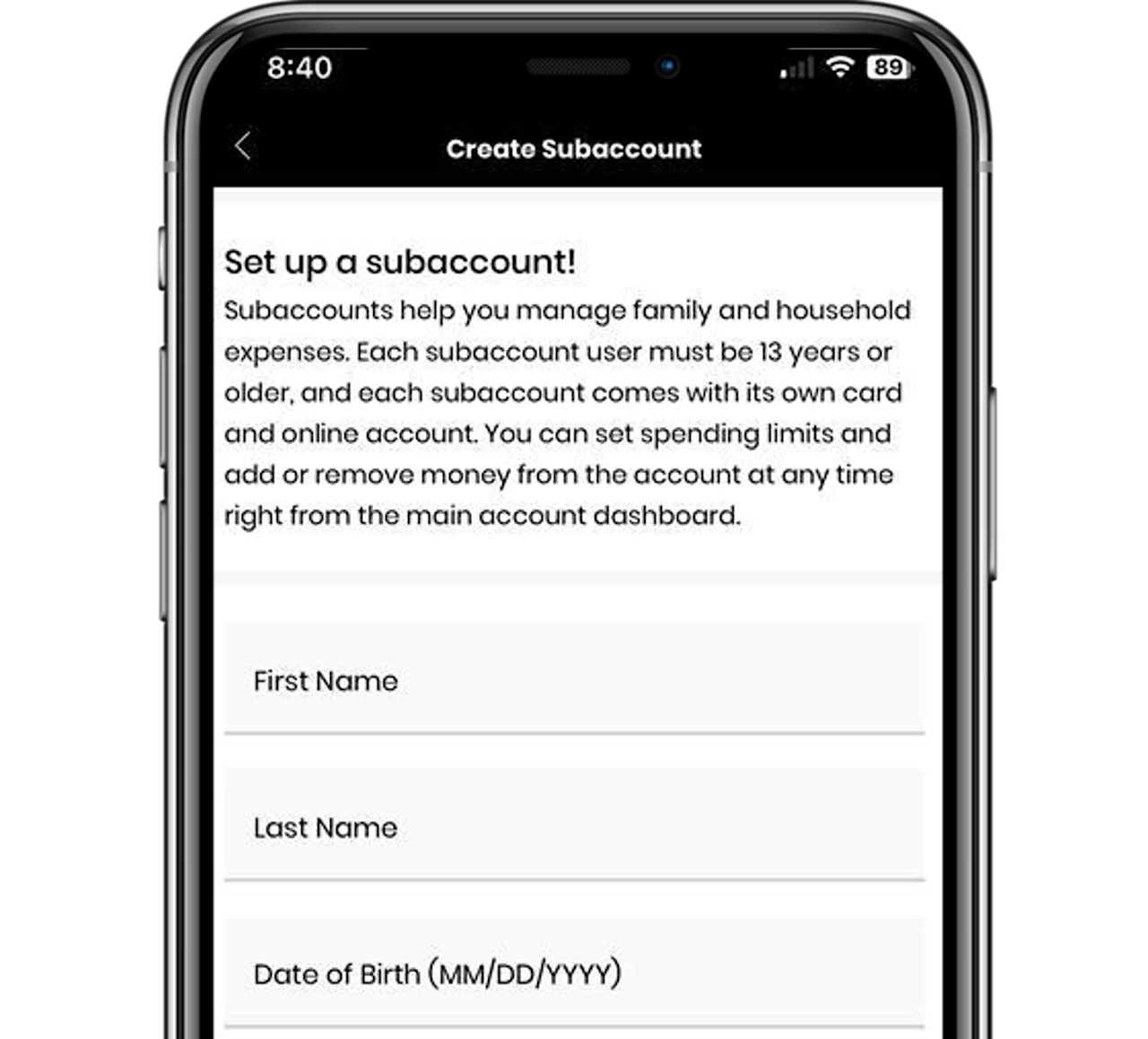
Click on Add Subaccount from the home screen, enter the subaccount user’s information, and create a username & password.
-
Confirm and submit
Confirm the subaccount user’s information and select Create Subaccount. The subaccount user’s personalized spendwell card will be sent to your address on file and should arrive within 7-10 business days.
FAQs
-
A subaccount is a feature associated with your spendwell® account that provides a convenient and flexible way to give another person (age 13 or older) access to your funds, while allowing you to maintain control over how much they spend and how they spend it. Seamlessly pay your child's allowance, send funds to your children at college, make funds available to the handyman for home repairs, etc.
While subaccount users will receive their own card and log in credentials, the subaccount is linked to, funded exclusively by, and controlled by you as the main spendwell accountholder. A spendwell accountholder can have up to four (4) subaccounts per spendwell account.
-
You can add funds to a subaccount by following the steps below. Note that transferring funds from your Main Account Available Balance to a Subaccount is the only way you or a subaccount user can add funds to the subaccount.
Log in to your spendwell account.
From the Home screen, select the subaccount to which you’d like to add funds and click or tap on Add money, or go to Money Out and select Transfer out of Main Account.
When you get to the Transfer out of main account screen, select the subaccount you’d like to add funds to by selecting it from the list. Enter the amount you want to transfer from your main account to the selected subaccount and select Transfer.
Your funds will be transferred to the selected subaccount right away. You will see a confirmation that the transfer has been completed, along with a transaction ID number for reference.
-
It’s easy to set up and manage controls over how much subaccount users spend and how they spend it. To access the subaccount settings, simply select the subaccount you’d like to manage from the Home screen. Click or tap on the “gear” icon in the upper right-hand corner of the Subaccount summary. You can change the controls you put in place at any time.
From subaccount settings you can set the following types of controls for each subaccount:
Enable or disable purchases with the subaccount card
Set a daily spend limit
Limit whether the card can be used for purchases only in the U.S. or internationally
Enable or disable ATM access
Enable low balance alerts so you are notified if the balance in the subaccounts drops below a level you define
Enable or disable the subaccount user from receiving text or email alerts about the subaccount
Limit access to the subaccount by changing the password, freezing or closing the subaccount
-
You can log into your spendwell account to close a subaccount at any time. Once the subaccount is closed, you will not be able to reopen it. When you close the subaccount, the remaining balance will be automatically transferred back to your main account available balance.
Follow these steps to close a subaccount:
Log into your spendwell account.
From the home screen, select the subaccount you’d like to close.
Access subaccount settings by clicking or tapping on the “gear” icon in the upper right-hand corner of the subaccount summary.
Select Close Subaccount under account access.
The subaccount will be closed and any remaining subaccount balance will be transferred back to your main account. You will not be able to re-open a subaccount once it is closed.
-
Follow the steps below to create a subaccount. You can have up to four (4) subaccounts.
Log into yourspendwell account.
Select Add Subaccount from the Home screen.
Confirm or edit your mailing address and select Continue. A personalized spendwell card with the subaccount user’s name will be mailed to the primary address we have on file for you as the Main Accountholder.
Enter the subaccount user’s name and date of birth (to confirm they are at least 13 years of age) and select Continue.
Create a username and temporary password that the subaccount user will use to log in and provide an email address for the subaccount user. Select Continue.
The email address you enter for the subaccount user cannot be associated with any other spendwell account.
The subaccount user will receive an email to verify their email address.
For security, enter the subaccount user’s phone number and select Continue.
The subaccount user’s phone number cannot already be associated with another spendwell account.
Confirm the subaccount user’s information and select Create subaccount. The subaccount user’s personalized spendwell card will be sent to your address on file and should arrive within 7-10 business days.
The subaccount user will need to verify their email address and activate their personalized spendwell card before using the subaccount.
-
spendwell subaccount users CAN:
Use their cards for purchases in the U.S. or internationally (as permitted by the main accountholder)
The Visa® debit card issued with the spendwell Bank Account can be used anywhere Visa debit cards are accepted
Withdraw cash at ATMs nationwide (only if allowed by the Main Accountholder).1
spendwell Bank Account subaccount users may use their card at international ATMs
Send funds to other spendwell accountholders
Request funds from the main accountholder
Temporarily freeze or unfreeze their card
Request a replacement card
Receive 1% cash back on purchases2
spendwell subaccount users CANNOT:
Add funds to their account (funds must be added by the main accountholder.)
Use the bill pay feature
Create goals
Create their own subaccounts
Receive funds from other subaccounts or other spendwell accountholders